5 min - Published May 23, 2026
Why Your Link Preview Looks Like Shit on LinkedIn
LinkedIn previews usually break because the image is wrong, the tags are missing, or the cached version is stale.
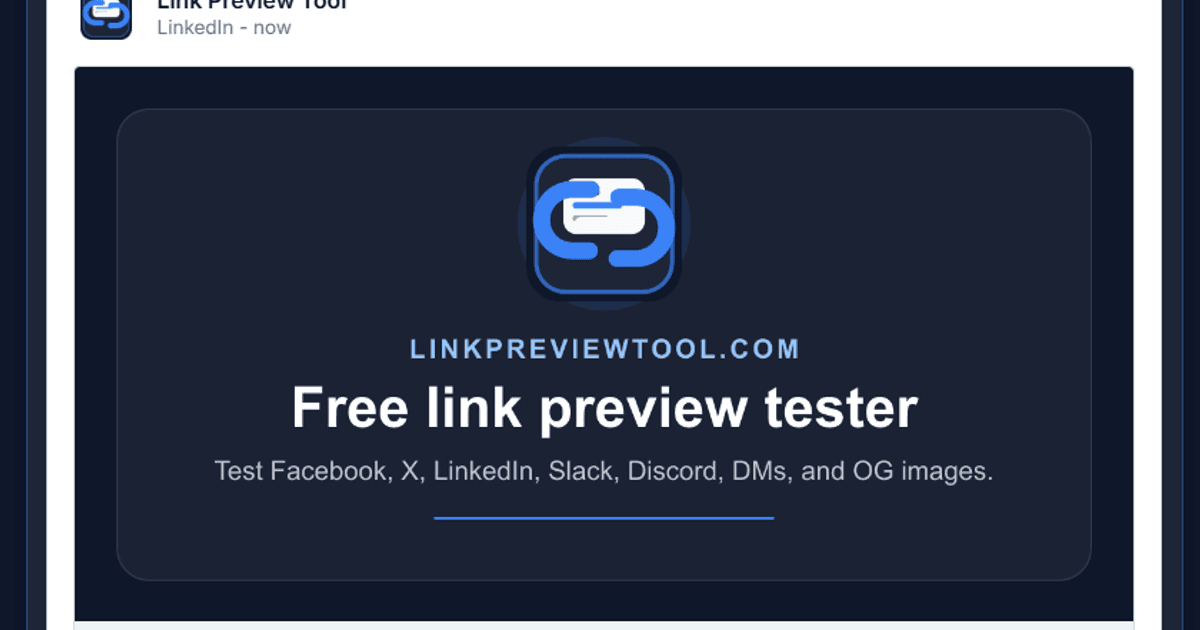
Your image is doing the most damage
LinkedIn cards are not very forgiving. Tiny text gets crushed, busy screenshots turn into noise, and weird aspect ratios can make the card feel broken even when the metadata is technically working.
Start with a clean 1200 x 630 image. Put the headline or core visual in the middle, leave room around the edges, and make sure the card still makes sense when it is shrunk down on mobile.
Your tags might be incomplete
LinkedIn leans heavily on Open Graph tags. At minimum, check `og:title`, `og:description`, `og:image`, and `og:url`. If those are missing, duplicated, or generated only after client-side JavaScript runs, LinkedIn may not see the same page your browser sees.
The boring fix is usually the right fix: render the tags in the initial HTML, use a public image URL, and keep the title and description tight.
Your old card may be cached
Sometimes the page is fixed but LinkedIn is still showing the old card. That is a cache problem, not a brand crisis. Retest the live URL, confirm the HTML has the right tags, then give LinkedIn time to refresh its copy.
If this tool sees the new title, description, image, and URL, your site metadata is probably correct. From there, you are waiting on the platform cache.